Getting Started with RuleBindery
A 10-minute walkthrough: create a project, write a section, turn a rule into a reusable entity, reference it, fix what the validator flags, and export.
Last updated 6 min read
RuleBindery keeps the rules of your game book as structured content and builds the page layout from it, so you write and fix the rules and never rearrange pages by hand. In about 10 minutes, this walkthrough takes you from a new account to an exported PDF: you create a project, write a section, turn a rule into a reusable entity, reference it from your text, fix what the validator flags, and export.
On this page
Before you start
You need:
- A RuleBindery account. Signing up is free and needs no card.
- A desktop or laptop browser. Below about 1024 pixels wide, the editor shows a notice recommending a larger screen.
- An internet connection. Your work is saved to RuleBindery's servers as you type, on every plan.
New accounts start with a 14-day trial of the Publisher plan, and the banner at the top of the app shows the days left. Every step here works on the Free plan too. Steps that need Publisher once the trial ends are marked (Publisher). Compare the plans.
1. Create your account
- Go to the sign-up page and choose Continue with Google, or enter your name, email and a password and choose Sign up.
- If you used email, open the verification link RuleBindery sends you, then sign in.
Your first sign-in creates a personal workspace for you, so there is nothing to set up. You land on Projects.
2. Create a project
A project holds one book: its documents (the prose) and its entities (the reusable pieces, such as monsters, spells, items and conditions).
- On Projects, choose New project.
- Type a Project name.
- Choose Start with sample entities.
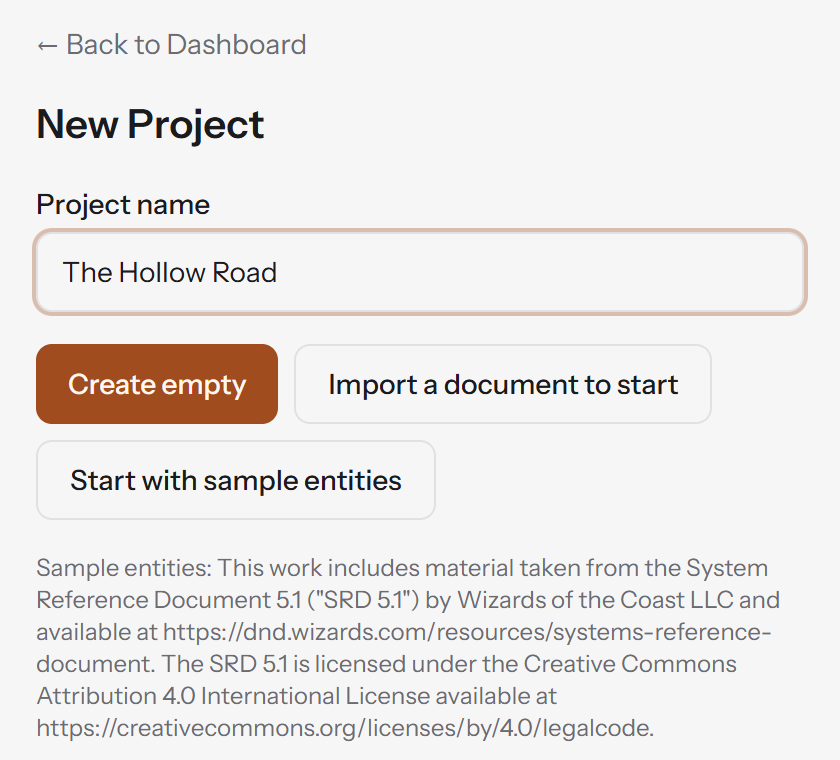
The sample project contains three conditions (Prone, Blinded and Grappled) with their text from the SRD 5.1, a licence entity crediting that source, and one document called "Getting Started". The document already references the Prone condition.
The other two buttons:
- Create empty starts a blank project.
- Import a document to start creates the project from a Word (.docx) or Markdown file (Publisher).
3. Find your way around the editor
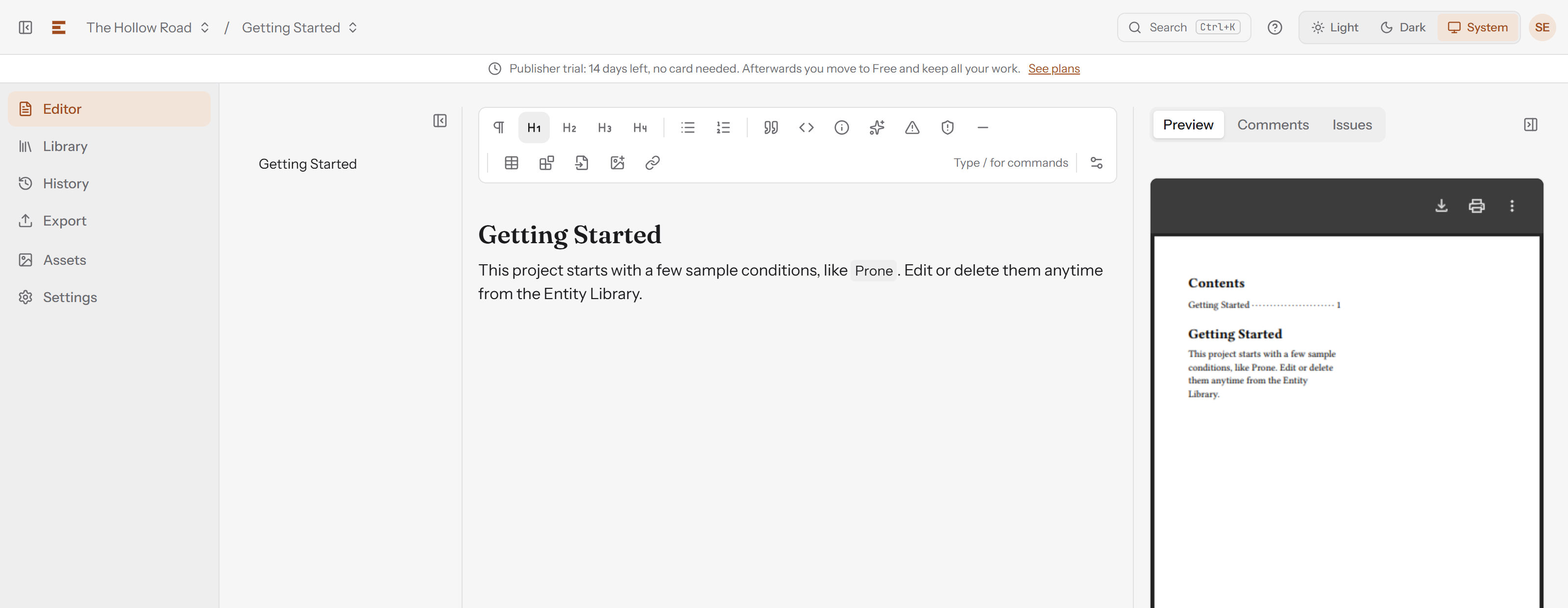
From left to right:
- The rail switches between the parts of the project: Editor, Library (your entities), History (snapshots and errata), Export, Assets (images) and Settings.
- The outline lists the document's headings. Click one to jump to it, or drag it to move the whole section.
- The writing area has a toolbar of block types above it, with the hint "Type / for commands".
- The side panel has three tabs: Preview (the book as it will be laid out), Comments, and Issues (what the validator found). On screens narrower than about 1536 pixels it starts collapsed; open it with the panel button at its top-right corner.
The top bar shows the current project and document. Open the document name to switch documents or choose New document. The Search button (Ctrl+K, or ⌘K on a Mac) finds pages, documents and entities. Inside the writing area, Ctrl+K adds a link instead.
4. Write a section
- Click at the end of the document and press Enter to start a new line.
- Type
/to open the block menu. - Type
h2and press Enter. The menu filters as you type, soh2leaves only Heading 2. A space closes the menu, so type the block's short name rather than "Heading 2" in full. - Type a heading, for example "Hiding", and press Enter.
- Write a paragraph: "A creature you can't see attacks you with advantage."
- Press Enter, type
/tipand press Enter for a Callout — tip, then type the tip.
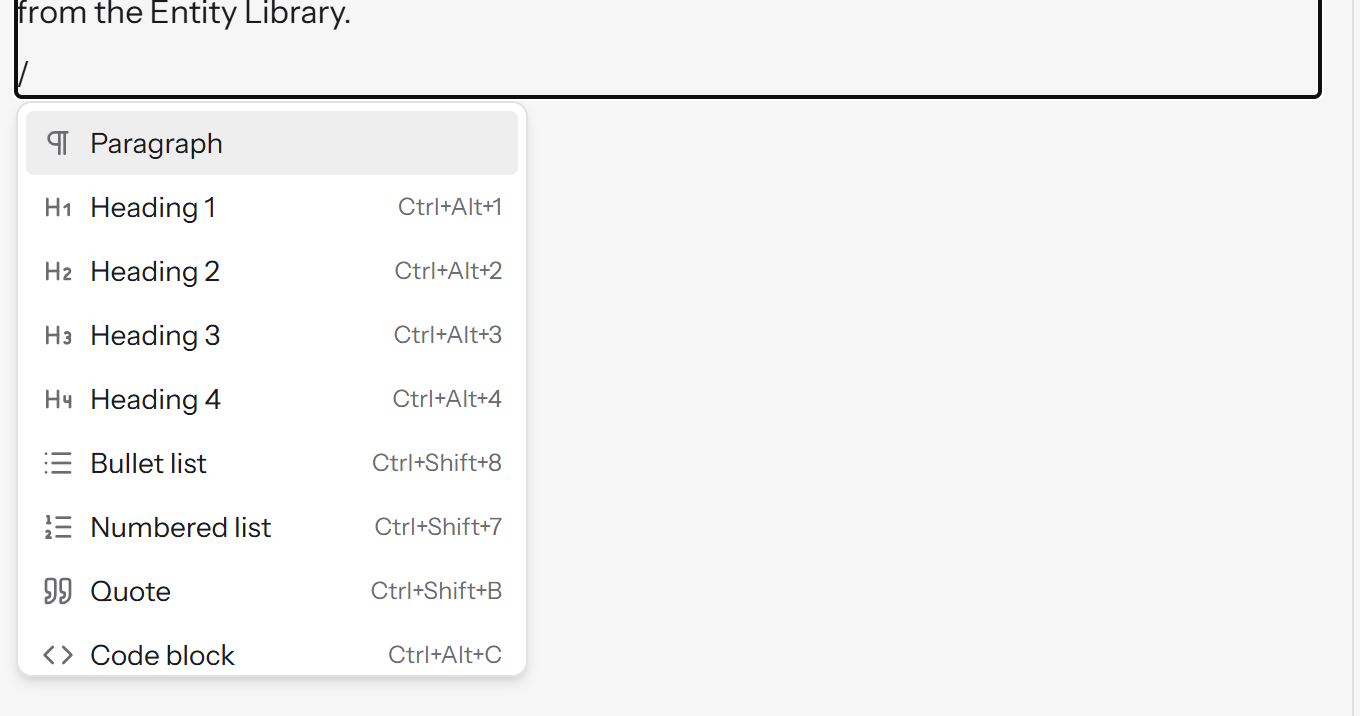
The outline picks up the new heading, and the Preview tab redraws the page a moment after you stop typing.
There is no manual page break. Pages are laid out for you, so a rule added later never leaves a hole or pushes a table onto the wrong page. To make a section open on a fresh page, put the cursor in its heading and use Section properties on the toolbar: its Page break option offers Start on a new page and Start on a right-hand page.
5. See what the validator catches
Open the Issues tab. RuleBindery checks the document as you write, and it has already found something:
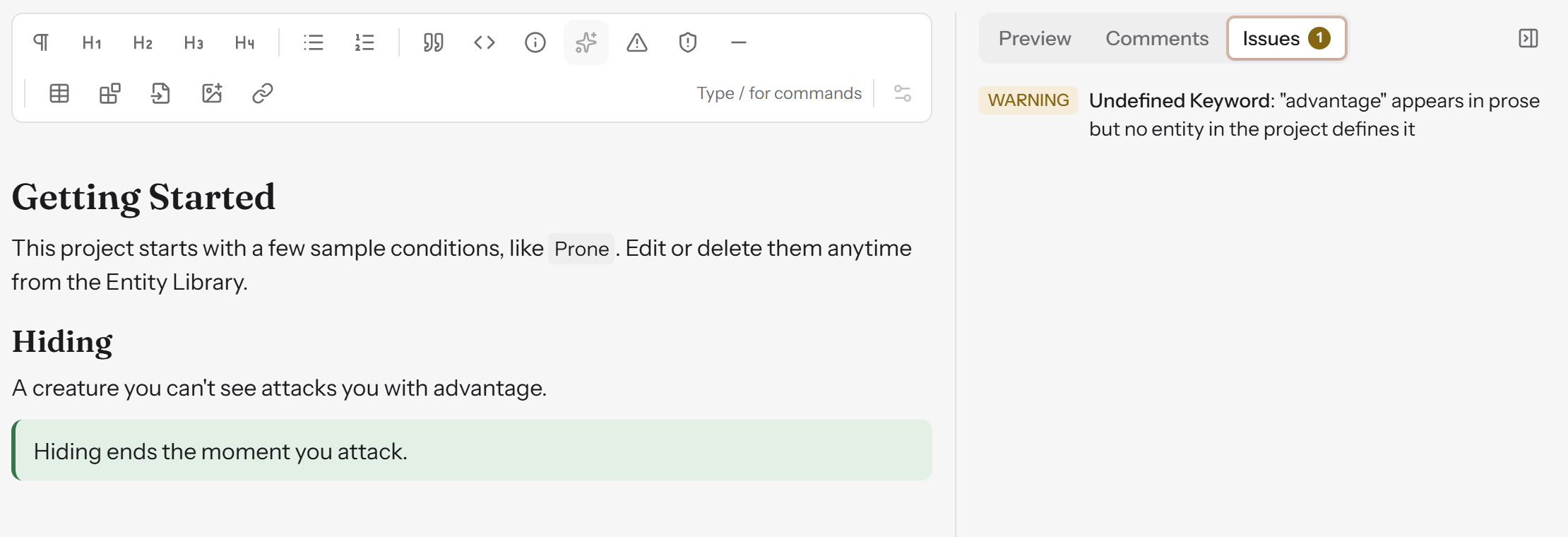
"Advantage" is a core rules term, and nothing in this project says what it means. A reader who meets it in your book has nowhere to look it up. The count on the Issues tab turns amber for warnings and red for errors.
Click the issue to jump to the paragraph where it occurs.
6. Turn a rule into an entity
An entity is a piece of your rules that you define once and use anywhere. Here you define "Advantage" as a keyword.
- Choose Library in the rail.
- In the type list beside New entity, choose Keyword, then choose New entity.
- Enter the Name "Advantage" and a Summary, for example "Roll two d20s and use the higher result."
- Choose Save.
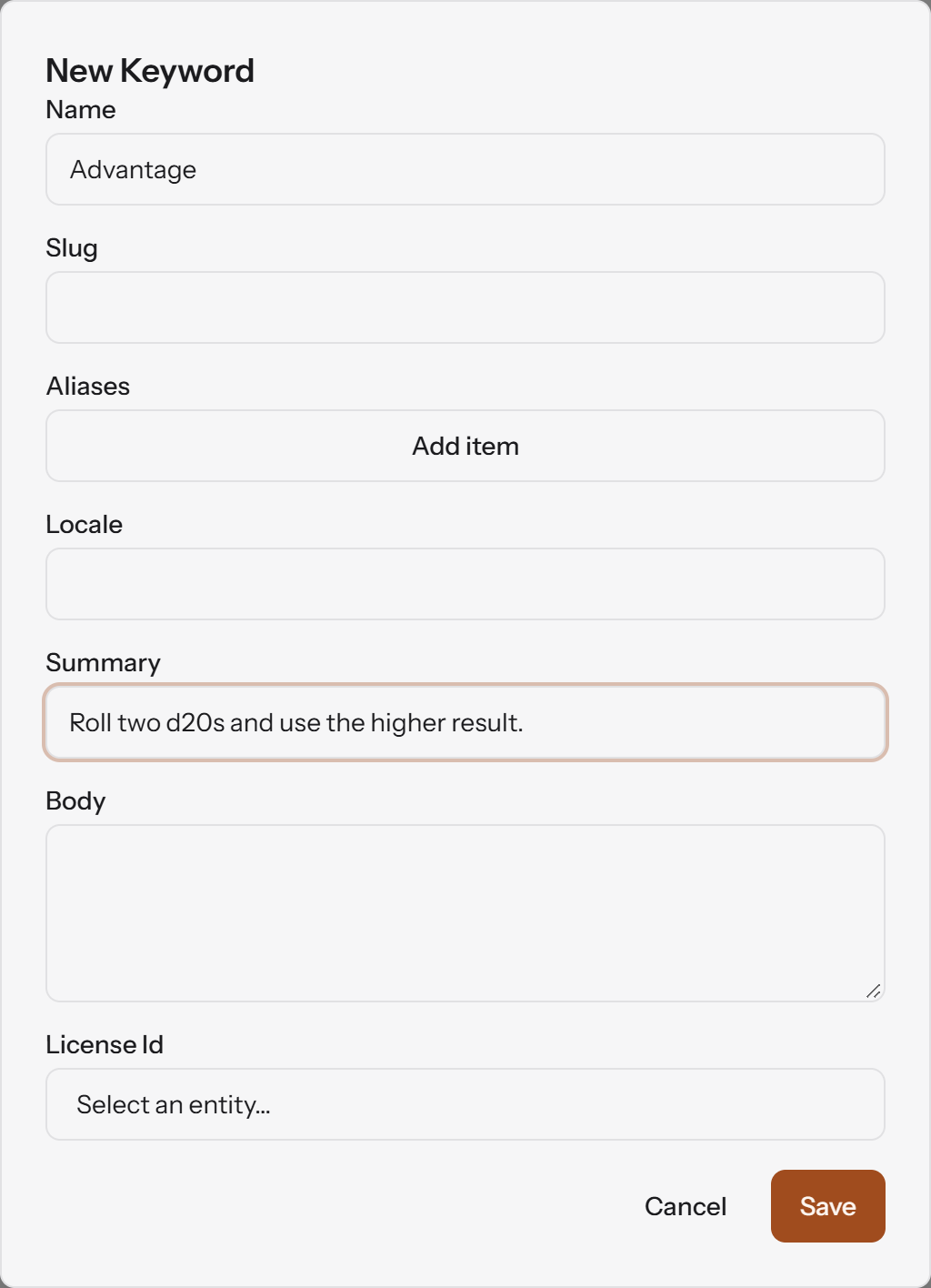
Go back to Editor. The warning is gone: the term is now defined.
The other entity types are Monster, Spell, Item, Condition, Random Table and License. If your game needs another, such as traps or factions, choose New custom type in the Library and give it its own fields.
7. Reference the entity with @
- In the editor, start a new line: "Attacking from hiding gives you ".
- Type
@and the first letters of the name:@Advan. - Advantage is at the top of the list. Press Enter.
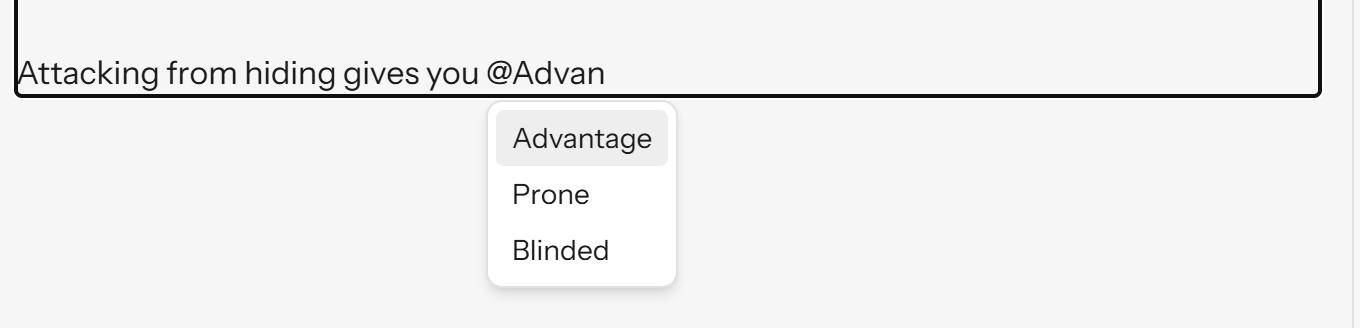
The reference appears as a chip. It is a link to the entity, not a copy of its name.
To place the whole entity in the text, such as a full monster stat block, type / and choose Entity embed instead, then pick the entity.
8. Change it once, see it everywhere
Go to Library, choose Edit on Advantage, change its name to "Edge", and save. Back in the editor, every reference to it now reads "Edge". A book with a hundred references to a spell needs exactly one edit when the spell changes.
Deleting an entity that is still referenced does not delete the references. Each one turns red, and the Issues tab lists an error such as: Reference to "Edge" points to an entity that has been deleted. Restore it, or replace or remove the reference. Click it to go to the reference. To bring the entity back, open the project's Settings page and choose Restore next to it; its references work again. To move every reference to a different entity instead, choose Replace all references with another entity in the Library's Delete dialog.
9. Preview and export
Open the Preview tab to see the book laid out: a table of contents, a glossary built from your keyword entities, and the first use of each term in bold. You did not add any of those; RuleBindery generates them from your content.
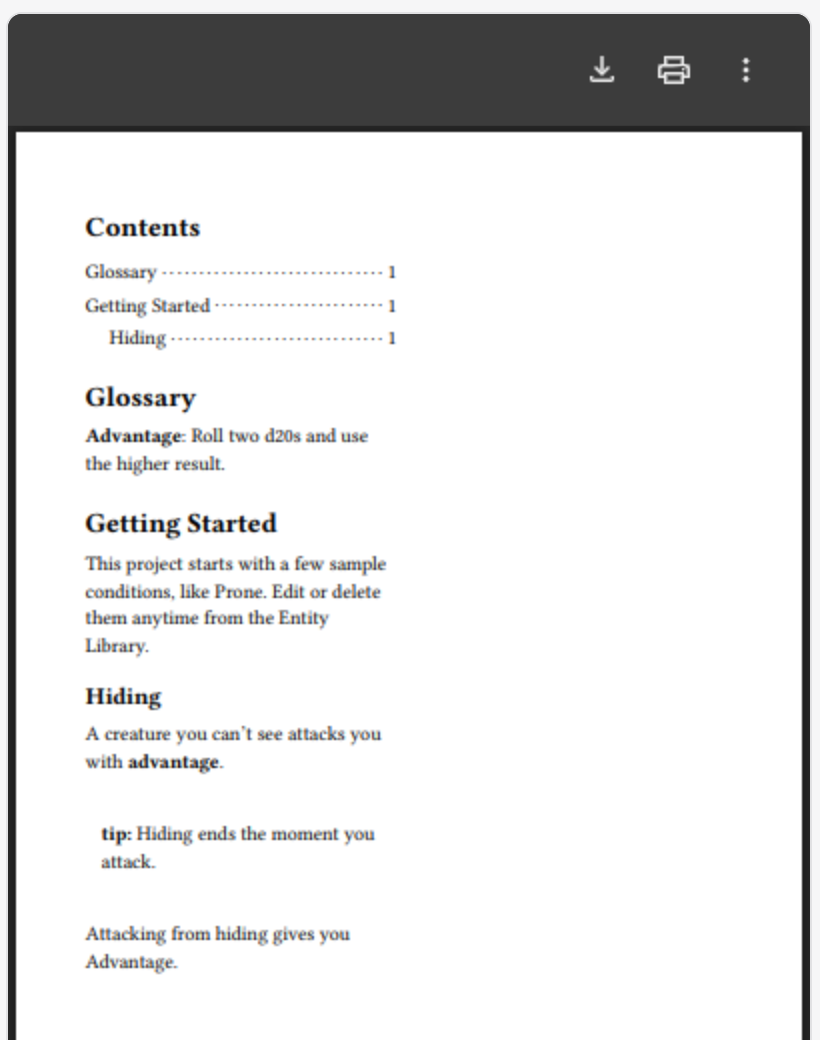
When you are ready, choose Export in the rail, pick a format and choose Export:
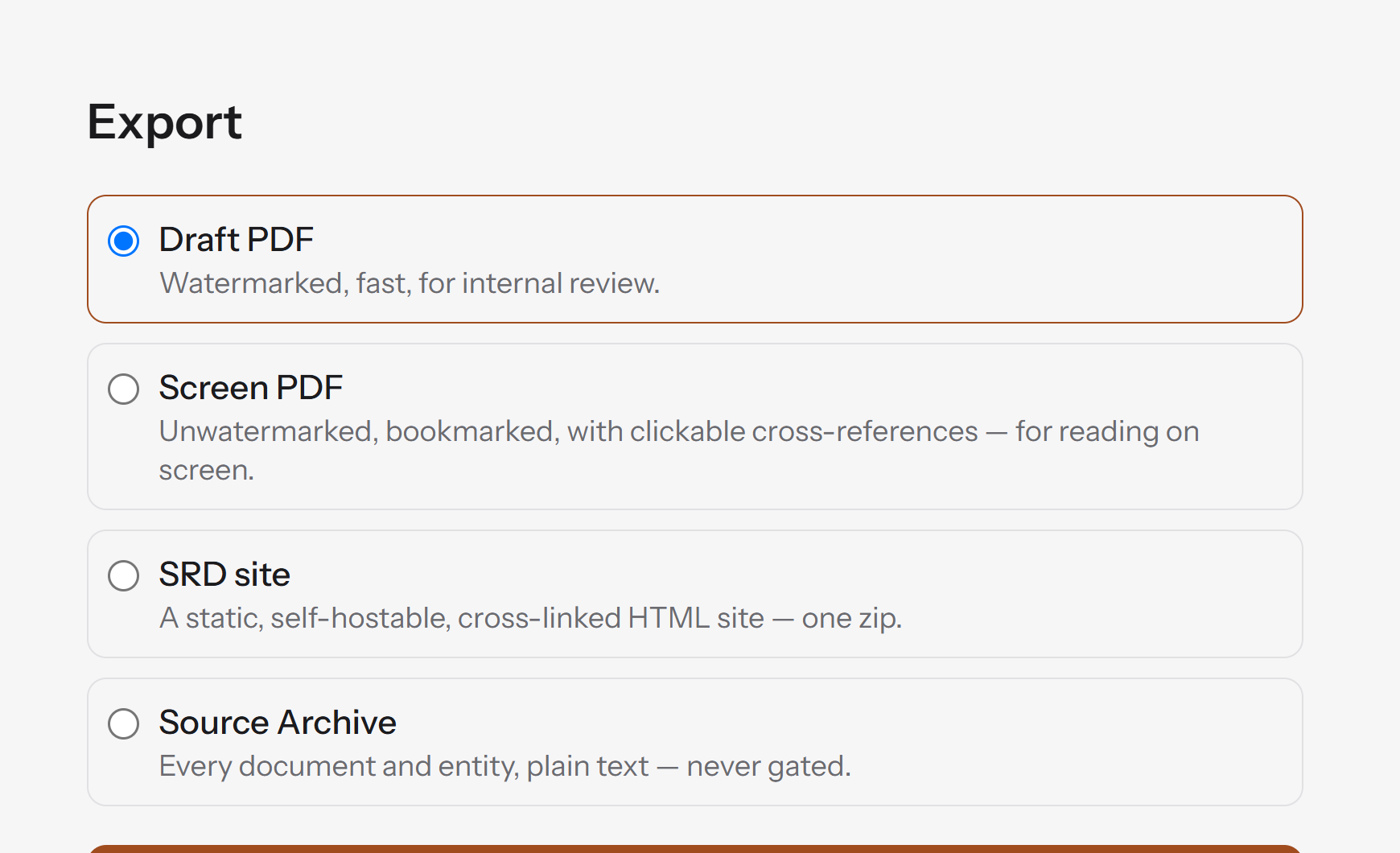
| Export | What you get | Plan |
|---|---|---|
| Draft PDF | A watermarked PDF for internal review | Free |
| Screen PDF | An unwatermarked PDF with bookmarks and clickable cross-references, for reading on screen | Publisher |
| SRD site | A self-hostable HTML site of your rules, as one zip | Publisher |
| Source Archive | Every document and entity as plain text | Every plan |
A draft PDF always exports. A screen PDF or SRD site waits until the validator's errors are fixed; warnings never block an export.
Next steps
- How RuleBindery works explains documents, entities, references and the validator in more depth.
- How to make a TTRPG rulebook walks through a whole book, from draft to finished PDF.
- Compare the plans to see what Publisher and Studio add.